Thursday, August 25, 2016

VMware Site Recovery Manager (SRM) - advanced settings

I was facing configuration issue with Site Recovery Manager (SRM) for my customers, I often configure some advanced settings that let me avoid cosmetic errors or recovery failure.

This topic is cover those advanced settings to change advanced settings using vsphere or web client.


Note: By design, during an upgrade, SRM does not retain any advanced settings that you configured in the previous installation. Some advanced settings may require unprotect VM and protect it again because its apply only to virtual machines that you protect after you changed the settings. Please always follow documentation to a SRM version that you configure as VMware likes adding or changing some advanced settings.

Tuesday, August 9, 2016

Top 20 ESXi articles for July 2016

Here is our Top 20 ESXi articles list for July 2016. This list is ranked by the number of times a VMware Support Request was resolved by following the steps in a published Knowledge Base article.


The post Top 20 ESXi articles for July 2016 appeared first on Support Insider.

Monday, July 11, 2016

VMware vSphere vCenter Log location

Here i have shared the vmware vsphere vCenter log location , this will help you to troubleshoot and solve the problems.

vCenter 5.x / 6.x

The vCenter Server logs are placed in a different directory on disk depending on vCenter Server version and the deployed platform:

vCenter Server 5.x and earlier versions on Windows XP, 2000, 2003: %ALLUSERSPROFILE%Application DataVMwareVMware VirtualCenterLogs

vCenter Server 5.x and earlier versions on Windows Vista, 7, 2008: C:ProgramDataVMwareVMware VirtualCenterLogs

vCenter Server 5.x Linux Virtual Appliance: /var/log/vmware/vpx/

vCenter Server 5.x Linux Virtual Appliance UI: /var/log/vmware/vami

Note: If the service is running under a specific user, the logs may be located in the profile directory of that user instead of %ALLUSERSPROFILE%.


Thursday, June 23, 2016

All Paths Down (APD) and Permanent Device Loss (PDL)

vSphere ESXi datastores there are two distinct states a device can be in when storage connectivity is lost; All Paths Down (APD) or Permanent Device Loss (PDL). For each of these states, the device is in an All Paths Down condition, but how they are handled is different. All Paths Down (APD) is a condition where all paths to the storage device are lost or the storage device is removed. The state is caused because the change happen in an uncontrolled manner, and the VMkernal core storage stack does not know how long the loss of access to the device will last. The APD is a condition that is treated as temporary (transient), since the storage device might come back online; or it could be permanent, which is referred to as a Permanent Device Loss (PDL).

The Permanent Device Loss (PDL) is the permanent removal of a device. This is typically caused by a storage administrator removing a LUN at the storage array, either by unmapping or deleting it. The VMkernal core storage stack knows the device is not coming back because the storage array informs the host of a PDL state through a SCSI command response. The removal is considered permanent when all paths have the PDL error

There are two variants of PDL, planned and unplanned:

• Planned PDL is when the administrator follows the recommend workflow to remove a storage device (Unmounting a LUN or detaching a datastore/storage device from multiple VMware ESXi 5.x/6.0 hosts)
• Unplanned PDL is when the storage administrator just removes a storage device (at the storage array)

A device may return from a PDL, but there is no guarantee of data consistency at that point.

When a LUN is removed from an ESXi host without preparing the host, there is a potential for them to enter an All Paths Down (APD) state that will become host and virtual machine impacting; the hosts may disconnect from vCenter Server and the ESXi servers would require a reboot to resolve the problem. To address this issue, in vSphere 5.1 there was an advanced setting introduced called APDHandlingEnabled, which defaults to 1. When this setting is enabled, the host continues to retry non-VM I/O commands to a storage device in the APD state for a limited period only. If this value is set to 0, the behavior of retrying failing I/Os forever will be imposed. 

A configurable timer with a default of 140 seconds starts when a host first detects a datatstore is in All Paths Down (APD). Hostd will mark the datastore as inaccessible with an APD Started reason. The timeout parameter controls how many seconds the ESXi host will retry non-VM I/O commands to a device before determining the device is unreachable.

After the timer expires, the datastore will be identified as APD Timeout, pending non-VM I/O will be aborted and hostd will mark the datastore as inaccessible with an APD Timeout reason. Any further non-VM I/O will be fast failed with a status of NO_Connect.

This will ensure hostd does not become unresponsive, and prevents ESXi hosts disconnecting from vCenter Server.

You might want to increase the value of the timeout if there are storage devices connected to your ESXi host, which might take longer that 140 seconds to recover from a connection loss. You can enter a value between 20 and 99999 seconds.


What about the Guest OS initiated I/O? The Guest OS is responsible for retrying or aborting it's own outstanding I/O. vSphere has a feature to make VMX file writes more resilient, VMX I/O updates to the config file are atomic which mitigates corruption to the VMX file during an APD. It is initially written to a tmp file, and then swapped with the actual vmx.

Now that we have a better understanding of All Paths Down, lets create an alarm for APD Timeouts. vCenter Alarms can be specified for a particular object and it will apply to all the child-objects beneath in the vCenter server tree. In this instance, we are going to create an alarm to specific event that applies to all the ESXi hosts.

To start, we are going to go into the vSphere Web Client and go to the Manage tab and click on the Alarm Definitions view. In the Definitions view, we are going to click on the green + button to create a new alarm.


On the General view, we are going to give our alert a name and description. You will set the Monitor For to specific event occurring on this object, for example VM Power On and then click Next.


Next we are going to add the trigger. The Event is going to be esx.problem.storage.apd.timeout with the Status of Alert.


On the Actions view, this is where we are going to setup the action taken when the alert hits a threshold.


Saturday, May 21, 2016

End of General Support for vSphere 5.0 and vSphere 5.1

The End of General Support for vSphere 5.0 and vSphere 5.1 is August 24, 2016.  To maintain your full level of support and subscription, you will need to upgrade to a supported version of vSphere, for more details refer the below link.

Sunday, May 8, 2016

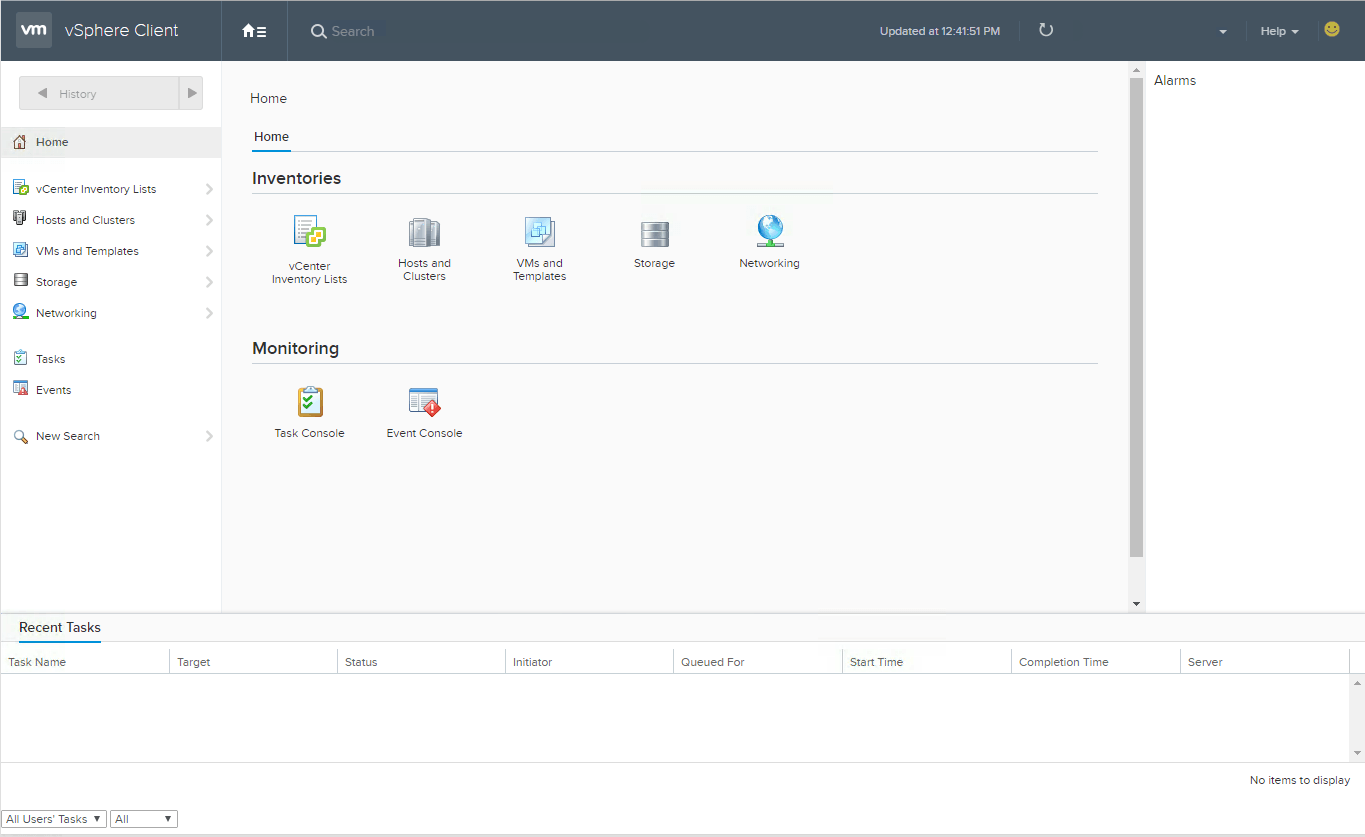
vSphere HTML5 Web Client

vSphere HTML5 Web Client fling. Its good to see some progress towards HTML5 based web client. vmware published vsphere HTML5 web client supporting both the vCenter server appliance and vCenter server ( Windows).

Following features are available HTML5 web client.

• VM Power Operations (common cases)
• VM Edit Settings (simple CPU, Memory, Disk changes)
• VM Console
• VM and Host Summary pages
• VM Migration (only to a Host)
• Clone to Template/VM
• Create VM on a Host (limited)
• Additional monitoring views (Performance charts, Tasks, Events)
• Global Views (Recent tasks, Alarms–view only)

Saturday, May 7, 2016

ESXi Queue Depth

The HBA LUN queue depth determines how many commands the HBA is willing to accept and process per LUN and target.

ESXi 5.x the ddefault value for ql2xmaxqdepth=64, if a single VM is issuing IO, the queue Depth setting is applicable.

When multiple VM's are simultaneously issuing IO's to the LUN, the ESX parameter Disk.SchedNumReqOutstanding (DSNRO) value becomes the leading parameter, and HBA Queue Depth is ignored.

Increading the Queue Depth value without changing the Disk.SchedNumReqOutstanding setting will only be beneficial when one VM is issuing commands. It is considered best paactice to use the same value for the Queue Depth and DSNRO.


AQLEN

Type esxtop and press d:disk adapter:

The value listed under AQLEN is the queue depth of the storage adapter. This is the maximum number of ESX VMKernel active commands that the adapter driver is configured to support.

DQLEN

Type esxtop and press u: disk device:  

DQLEN limits the commands per storage device.
The value listed under DQLEN is the queue depth of the storage device. This is the maximum number of ESX VMKernel active commands that the device is configured to support.


So basically I can multiply the LUN queue with the number of connected datastores to know how much active commands my host is allowed to issue down to the storage. This value will be limit by AQLEN to 2176 per vmhba.

What’s the Best Setting for Queue Depth?


VMware default settings are usually preferred. However, It is highly unlikely that all hosts perform at their maximum level at any one time. Changing the defaults can improve throughput, but most of the time it is just a shot in the dark. Although you are configuring your ESX hosts with the same values, not every load on the ESX server is the same.. Please do not change the default settings unless directed to by VMware in conjunction with the storage vendor. Changing these settings without analyzing the environment can be more harmful than useful.

What is FinOps in VMware Cloud Foundation?

FinOps (Financial Operations) is all about helping IT teams and business leaders understand, control, and optimize cloud spending. VMware Cl...