Sunday, June 22, 2014

vCenter 5.5 Profile Driven Storage and Storage Monitoring Service Failure

I’d been having a bit of a frustrating time recently with the Profile Driven Storage Service and the Storage Monitoring Service in my vCenter 5.5 system. For some reason they just wouldn’t start. Their health check service would continually fail and give a HTTP 503 Error. The logs were also not very helpful with regard to what was going on. The VMware KB was also no help with this particular issue as it had nothing to do with the known problem around using custom ports for the services. I was almost at a total loss and then I stumbled across the solution.

Going through the logs, searching the VMware KB and Googling didn’t help. Just rebooting hadn’t helped either. Then I noticed that vCenter was consuming a lot of memory. vCenter has become a bit of a memory hog over the versions. Even though I’m not running a huge environment I already had vCenter configured with 16GB RAM, all of which it was already consuming.

I though to myself, I wonder if it’s just because there isn’t enough RAM allocated? I checked my host to ensure I had some RAM to spare and I was in luck. I shutdown my vCenter, logged directly into the host and increased it’s allocated RAM to 24GB.  After the reboot I waited patiently for all the services to start. After all the services had restarted, this is what I was greeted with when checking the vCenter Service Status:


All green lights! Excellent.

If you’re Profile Driven Storage Service or Storage Monitoring Service isn’t working. Try giving vCenter some more RAM. It’s a simple solution and might quickly solve your problem. If not, then it’s time to seek additional assistance. As always comments and feedback are welcome.

Thursday, June 12, 2014

Architecting vCenter Single Sign On 5.5 (SSO)

In this article I will specifically talk about Best Practices around vCenter Single Sign-On Server and the related components. I would began this discussion with giving you a bite into the need and importance of vCenter Single-Sign On and later move towards recommendations on how to lay out the architecture of SSO. I would also like to give the credits for these slides to Nick Marshall from VMware

  • As mentioned in the slide above, vCenter SSO is the Authentication Platform for just the vSphere and related management components. This is very commonly mistaken as an enterprise wide single sign on solution.You do not have to buy a separate license for SSO as it is a part of the vCenter License and installation bundle.
  • SSO was launched with vCenter 5.1 and is now shipped along with vCenter 5.5 as well. SSO forms the authentication domain in a vSphere Infrastructure, hence a user unlike earlier version of vCenter, does not log in directly to vCenter Server. A user when logs into vCenter either via Web Client or C# client (thick client), first hits the SSO server which can be integrated to an AD/LDAP resource for user mapping. At this point a SAML 2.0 token is generated for the user which is exchanged as user credentials for that user to log in to vCenter or other vSphere Components which are supported today by vCenter SSO.
  • No operational SSO means no access to vSphere Components, hence it is the first component which needs to be designed and implemented to have a stable access mechanism.

VMware solutions which are integrated with vCenter SSO today. This makes it even more obvious that SSO is here to stay and we need to ensure that we design & implement it properly for a stable infrastructure.


  • Nearly all the components in a VMware Stack are integrated with SSO.
  • It is important to note that for vCloud Director the Provider Side of things are integrated with SSO. 
  • From a future perspective, I can clearly see VMware integrating SSO with other components of the management stack in the days to come.

For those who have used SSO with vSphere 5.1 would agree that there were issues & concerns around implementing and using SSO. There was a lot of buzz around the community which was not in favor of the concept of Single Sign-On as a vSphere component. I, being hands on guy would completely agree with the community since I faced many of those issues which made circles around the blogs & forums.


Thanks to the engineering teams at VMware, with vSphere 5.5, the entire SSO was re-written. This was a great move since it not only solved all the issues which were noticed in 5.1, it also improved the performance of the vCenter Server in its new avatar. Let’s have a quick look on what is new with vCenter Single Sign-On 5.5.
I believe the slide itself is self-explanatory, however I would like to point out to a few changes which I am impressed with. One being Built-in Replication and the other being Exclusion of Database. With these features you do not have to manually update new roles/users if you have multiple SSO instances. You can just go ahead and update one site and the replication will take care of syncing that information between all the SSO servers which are paired together. With no database, you do not have to run those nasty scripts to ensure you have a working database for SSO. Quite Cool.

On this note let's see what deployment models & upgrade options you have with vCenter SSO 5.5 in the slide below.

  • If you upgrade from vCenter 5.1 to vCenter 5.5, you can do so from any of the existing deployment model which you chose while install 5.1.
  • If you have the option of re-installing or if you are installing the vCenter 5.5 for the first time, you do not have to worry about the complex deployment models at all. You can use a Single Virtual Machine for all vCenter components, within same site or across the sites. In case you have 6 or more local vCenter, then you can have a single instance of SSO server, where all the vCenter servers will talk to this SSO server for authentication. This is to avoid multiple streams of replications among the SSO servers within the same site.
The recommendation of having a single virtual machine for all the components of the vCenter Server is showcased in the slide below.

  • Use the simple installer to have all the components install on the same virtual machine, rather than performing a split install.
  • You can install the database here, however having it on a separate VM would be beneficial when the environment scales.
  • Make sure you give enough compute power to this single virtual machine as it is hosting all the components.
Let us also look at recommendations around multi-site deployment model in the last slide.
  • Each site runs all its components individually while SSO replication maintains a single SSO domain across sites.
  • Use of Linked Mode configuration can give you a single pane of glass here.
  • So a simple install at each site would be the Best way getting rid of all the SSO nightmares you can think of.

vSphere ESX - Server 2012 - 3D Graphics Option 'Greyed Out'

Problem

Whilst attempting to add 3D graphic support to a Windows Server 2012 guest VM, the option was greyed out.


Solution


1. Locate the .vmx file for this virtual machine and download it so you can edit it (Select a Host > Configuration > Storage > {Storage the guest is on} > Right Click > Browse Data Store > {Guest VM Name}) > Download.


2. Edit the file, and add the following to the end of the vmx file;

mks.enable3d = TRUE


3. Upload the file back to your storage, at this point I checked and it was still greyed out. I had to remove the VM from the inventory* then add it back to the inventory.

*WARNING: Remove it from the inventory by right clicking the VM in the VI Client. DO NOT Delete it from Disk!


Monday, June 9, 2014

vSphere Hardening Guide 5.5 Update 1 Released!

I’m happy to announce the general availability of the vSphere Hardening Guide for vSphere 5.5 Update 1. This has been a work in progress for a little while now and I’m glad to get it out there!

There are 4 new additions to the guide. Please review.


  • enable-VGA-Only-Mode: Used for server VM’s that don’t need a graphical console. e.g. Linux web servers, Windows Core, etc.
  • disable-non-essential-3D-features: Remove 3D graphic capabilities from VM’s that don’t need them.
  • use-unique-roles: A new companion control to use-service-accounts. If you have multiple service accounts then each one should have a unique role with just enough privs to accomplish their task. This is in line with least-priv operations
  • change-sso-admin-password: A great catch. When installing Windows vCenter, you’re prompted to change the password of administrator@vsphere.local. When installing the VCSA in a default manner you are not. This control reminds you to go back and do that.
  • The rest are formatting, spelling, clarification, etc.. One interesting change is the “enable-nfc-ssl” control. That has been renamed to “verify-nfc-ssl” now that SSL is enabled by default in 5.5 for NFC traffic. All of the changes are called out in the Change Log.
Head on over to the vSphere Hardening Guide page to grab your copy now!

Thursday, April 24, 2014

Upgrade ESXi 5.5 to ESXi 5.5 Update 1

VMware announced the update for vSphere 5.5 which is vSphere 5.5 update 1.  This update includes most of the vCloud Suite products, including VMware Virtual SAN (VSAN). It is time to upgrade your vSphere 5.5 to vSphere 5.5 update 1 to utilize the new features and also to fix the issues reported on the vSphere 5.5. It’s again the task for VMware admins to make their hands dirty with updating your vSphere 5.5. This post going to explain the procedure to upgrade the ESXi 5.5 host to ESXi 5.5 update 1.
This can be easily achieved using Update Manager but even though this post is going to explain the manual process to upgrade your ESXi host using esxcli command. Download ESXi 5.5 Update 1 from the VMware patch download page and download the ESXi 5.s update 1 zip file. Take a look at post Search and Download VMware Patches.


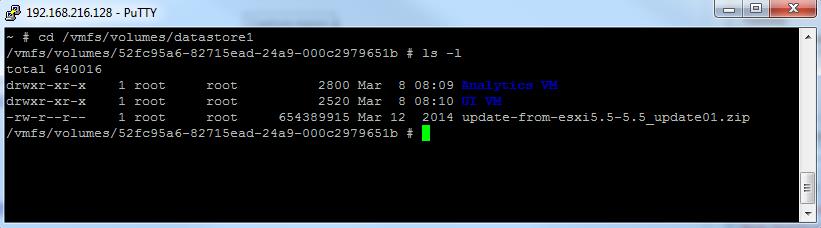
 Once ESXi 5.5 update 1 is downloaded, upload the update-from-esxi5.5-5.5_update01. zip file to your datastore of the ESXi host and verify the file is visible in the directory inside the datastore .Before upgrading to ESXi 5.5 update 1, verify the build version of our ESXi host. which isVMware ESXi 5.5.0 (VMKernel Release Build 1331820) 


You can verify the build version of ESXi 5.5 from the command line using the below command:
vmware -v
Execute the below command to install the ESXi 5.5 update 1 :
esxcli software vib install -d /datastore/directory/update-from-esxi5.5-5.5_update01. zip
Once ESXi 5.5 update 1 is installed on the ESXi host, You can see the message “The update completed successfully, but the system needs to be rebooted for the changes to be effective”.  Reboot the ESXi host. Once ESXi host is back after the reboot, verify the ESXi version after upgrade to ESXi 5.5 update 1.
Build version for the ESXi 5.5 update  1 is VMware ESXi 5.5.0 (VMkernel Release Build 1623387)
 That’s it. We are done with the upgrade to ESXi 5.5 to ESXi 5.5 update 1. I hope this is informative for you. 

Wednesday, April 23, 2014

OpenSSL heartbleed bug – VMware products

Most probably you are aware about recent finding by The bug was independently discovered by security firm Codenomicon and a Google Security engineer. Heartbleed.com has a detailed explanation of the issue, which is related to the “heartbeat” section of OpenSSL’s transport layer security (TSL) protocols and has been in the wild since March 2012. If you’re running a server with OpenSSL 1.0.1 through 1.0.1f, it’s vital that you update to OpenSSL 1.0.1g immediately. Within next few days you should expect massive flow of the companies KB with list of products which are affected and unaffected by OpenSSL bug. 

VMware already released KB2076225 with a list of systems which are affected by this bug. Long story short if have old releases of VMware systems most probably you are not affected. Below you can find short-listed VMware products which are in the KB, to see full list of affected VMware products check mentioned KB article above.

These VMware products that ship with OpenSSL 1.0.1 have been confirmed to be affected:

•         ESXi 5.5
•         vCenter Server 5.5
•         VMware Fusion 6.0.x
•         VMware vCloud Automation Center (vCAC) 5.1.x
•         VMware vCloud Automation Center (vCAC) 5.2.x
•         VMware Horizon Mirage 4.4.0
•        vFabric Web Server 5.0.x – 5.3.x (For remediation details, see the                   Security Advisory on Critical Updates to vFabric Web Server document.)
•         VMware vCloud Networking and Security (vCNS) 5.1.3
•         VMware vCloud Networking and Security (vCNS) 5.5.1

These VMware products that ship with OpenSSL 0.9.8 have been confirmed to be unaffected:

•         ESXi/ESX 4.x
•         ESXi 5.0
•         ESXi 5.1
•         VMware Fusion 5.x
•         VMware vCenter Server 4.x
•         VMware vCenter Server 5.0
•         VMware vCenter Server 5.1
•         VMware vCenter Server Appliance (vCSA) 5.x
•         VMware vCloud Automation Center (vCAC) 6.x

VMware released first bunch of patches for their products related to hearthbleed bug discovered in OpenSSL library, see details below.


Monday, August 26, 2013

VMware vSphere 5.5 Application High Availability – AppHA

VMware has introduced new Application HA in vSphere 5.5. It is a new feature which enables to protect tier one applications like SQL, or IIS against failures. Those applications are monitored and in case their service fails, the App HA is able to detect and restart this application. The product present itself as a virtual appliance which gets deployed to your environment as an OVF template.


There are already some vendors which leverages the API that has been introduced in vSphere 5, like Symantec Application HA or Neverfail.

The vSphere AppHA works in conjunction with vFabric Hyperic Server, so you must install/and configure Hyperic in order to use vSphere App HA, and you must deploy a small agent to the VM which allows the monitoring. The whole solution is managed through a plugin visible through the vSphere Web Client only.


There are policies which acts during the recovery process:

  • When application fails, the service is restarted
  • But if the service restarts fails, the VM gets restarted
  • A vCenter Alarm gets triggered
  • E-mail notification is sent.


vSphere AppHA – those current Applications supported:


  • MSSQL 2005, 2008, 2008R2, 2012
  • Tomcat 6.0, 7.0
  • TC Server Runtime 6.0, 7.0
  • IIS 6.0, 7.0, 8.0
  • Apache HTTP Server 1.3, 2.0, 2.2.

The product is apparently very easy to setup and use. It takes only about 30-45 min to go.

You can create individual policy for each of the applications, or you can use the same policy for all of the applications. You can right click the application to put it into maintenance mode during which there is no remediation. And then when finished working with that application, you just switch back to the normal working mode.

What is FinOps in VMware Cloud Foundation?

FinOps (Financial Operations) is all about helping IT teams and business leaders understand, control, and optimize cloud spending. VMware Cl...